Interesting Thoughts on Cloud Server Performance

Apache load testing on a Cloud Server – Jason – 7/31/2009

I recently created a cloud server for a wordpress blog, and configured it to the point that the blog was working OK.  Then I decided to check the performance aspects of the server, as it was a small 256 MB + 10GB machine.
Using apachebench (ab), I ran some load tests on the blog home page.  The server choked to death. It was swapping so bad, that RackSpace Cloud sent me this email:

This is an automatic notification to let you know that your Cloud Server, city.appcove.com, is showing a considerable amount of consistent swapping activity. Quite often this is an indicator that your application or database are not as efficient as they could be. It also may indicate that you need to upgrade your Cloud Server for more RAM.

That’s strange…
I found that the response rate was:

4 requests per second, 10 concurrent connections

When the concurrency was raised to 50, the server died.  It took 10 minutes for it to calm down enough that I could LOG IN and KILL apache.
So upon further investingation, I found that the default httpd.conf configuration was WAY TOO LARGE:
We’re only working with 256 MB ram here, so if each apache process takes up any amount of memory at all, we have a low limit.

<IfModule prefork.c>
StartServers       8
MinSpareServers    5
MaxSpareServers   20
ServerLimit      256
MaxClients       256
MaxRequestsPerChild  4000
</IfModule>

Only after drastically reducing the configuration to the following, did we get reasonable performance:

<IfModule prefork.c>
StartServers       4
MinSpareServers    2
MaxSpareServers   4
ServerLimit      4
MaxClients       4
MaxRequestsPerChild  4000
</IfModule>

As it turns out, the performance went up considerably:

16 requests per second, 50 concurrent connections

Still, I thought that it could get better.  So I looked into installing some PHP opcode caching software.

http://www.php.net/manual/en/intro.apc.php

The Alternative PHP Cache (APC) is a free and open opcode cache for PHP. Its goal is to provide a free, open, and robust framework for caching and optimizing PHP intermediate code.

As it turns out, it was easy to install.

# yum install php-pecl-apc

And after restarting apache:

47 requests per second, 50 concurrent connections

Even during this load test, the site was still responsive from a web browser.
Not bad for a cheap little Cloud Server, eh?

Starting to use SolidWorks

We recently purchased a copy of SolidWorks to use with our various engineering projects.  In about 3 hours, I was able to learn how to create parts, assemblies, and drawings.  

The software (to this point) is nothing short of incredible.  And I’m just using the most basic features.  

Here is a graphic of Rubber Band Gun #6 internals…

55254


I’ll have more updates as we progress deeper into the software.

-Jason

Great post on PHP’s preg_match regular expressions

Over at smashing magazine, they have a great post on PHP’s preg_match() regular expressions.  They cover a number of advanced topics in light detail, including:

1. Greediness/Laziness

2. Back Referencing

3. Named Groups

4. Word Boundaries

5. Atomic Groups

6. Recursion

7. Callbacks

8. Commenting

See it here!

http://www.smashingmagazine.com/2009/05/06/introduction-to-advanced-regular-expressions/

xhprof php profilier

Worth noting:

XHProf is a hierarchical profiler for PHP. It reports function-level call counts and inclusive and exclusive metrics such as wall (elapsed) time, CPU time and memory usage. A function’s profile can be broken down by callers or callees. The raw data collection component is implemented in C as a PHP Zend extension called xhprof. XHProf has a simple HTML based user interface (written in PHP). The browser based UI for viewing profiler results makes it easy to view results or to share results with peers. A callgraph image view is also supported.

Read more at http://mirror.facebook.com/facebook/xhprof/doc.html

Corner Office with a … Basement Light!

I’ve been working on moving into the new corner office with a view.  So far I have a chair, my laptop, a second monitor, keyboard, mouse, power strip, etc…

From the middle of the room, standing.

From the middle of the room, standing.

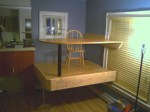
I must say — I love it.  It is indeed a unique experience to be working with your head about 7 feet off the floor.  It feels like and “office” but still a part of “home.

Tonight my 2 older sons and I went to Lowes to pick up some parts for a sub project.  We wanted to add some nice bright lighting underneath the platform, so they could host more activites down there.  They like puzzles and reading, so you need a good bit of light for that.

Our requirements were:

  • Low profile
  • Bright
  • Break-proof
  • A switch

I really didn’t want glass shattered all over the place, so good sturdy cover was required.  At the same time, sharp metal parts were out for safety reasons.

Purchased Light

We picked up satin nickel finish 48″ low profile fluorescent light fixture.  It has smooth edges, a sturdy plastic cover, and lies very flat.  But alas, it did not have a switch.  So we picked up some good sturdy wire nuts, a heavy duty toggle switch, and a grounded extension cord (soon to be light cord).

After we brought the light home and unpacked it, I started evaluating how I was going to mount it.  It was setup so the wires would go directly out the back, presumably into a junction box in the wall.  But we were  mounting it to solid wood, so that was a no-go.

So I did what any other red-blooded male would do in his workshop — dissembled the entire light.  Here we found that each side of the light is hollow aluminum, about 1.5×2.0″, and all of “their” wiring was in the one side.

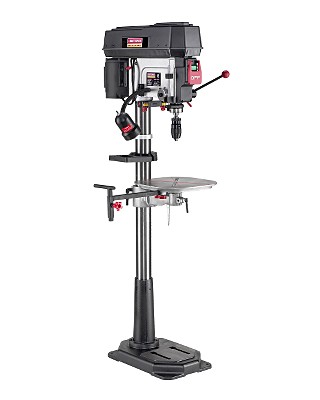
craftsman-drill-pressFirst, we took the one aluminum piece and clamped it in my drill press.  Then using a 3/8″ end mill, I milled a slot about 1/2″ by 1″ – just large enough to slip a wire nut through.  (I know the drill press is not especially suited for that, but my milling machine was just too small).

Secondly, we drilled ~1/2″ holes in all four end caps.  Why four?  Because there were “functional” end caps, and “pretty” covers. That was a bit tricky, because the end caps were die-cast aluminum – not exactly the kind of material you want to clamp really hard.  And it was elliptical, so there was no convenient place to clamp it.  We ended up fabricating a custom hold-down setup using a 2×6, piece of scrap aluminum, and 2 wood screws.

Toggle Switch.  Custom made.

Toggle Switch. Custom installed.

Thirdly, we connected all the wires.  The extra wires were heavy gauge stranded wire normally used for house wiring.  On the one end, I mounted the toggle switch, and on the other end, I ran the cut end of the extension cord into the light fixture.  Each of the 8 connections were very carefully twisted and wire nutted, and then covered with 3M electrical tape, just for added security.

Lastly, we installed it. Using 3 normal wood screws, we attached it to the “ceiling” of the space under the platform – right up against the padded steel beam.

It really fits in, and is amazingly bright.  The really narrow florescent tubes perform quite well.  The boys love it, and it is quite safe (as far as banging heads off of it, etc…).

Here is a picture of the two boys under the platform in their PJ’s shortly after installation:

Two happy boys in their new play area, under my office.

Two happy boys in their new play area, under my office.

Basics of telnet and HTTP

Say you want to request a webpage…  Normally, one would use a web browser, right?  But sometimes you just need to see what is really going on…  In this blog post I will show the basics of using the telnet command to work with the HTTP protocol.

For reference: http://www.w3.org/Protocols/rfc2616/rfc2616.html

Most of these commands were run on Linux, but telnet on Windows should work too.

telnet <ip-or-host> <port>

Background…

If you are using the HTTP protocol, which is port 80, then you must follow the HTTP protocol conventions (which are simple).  HTTP has two primary versions at this point: 1.0 and 1.1.

In the HTTP 1.0 days, a single website was bound to a single IP address.  What this means is that an HTTP request sent to a given IP address would return content from only one site.  This is quite limiting and inconvenient.  To have to assign a new IP for every different domain name… What a bother.  Not to mention that the current internet protocol standard, IPv4, is limited to several billion addresses and quickly running out.

More recently, HTTP 1.1 has become the standard.  This enables something called Name Based Virtual Hosting.  By requiring a “Host” header to be sent along with the request, HTTP servers can in turn “look up” the correct website and return it based on the name.  Hundreds or even thousands of different domains can now be hosted on a single IP address.

(keep in mind that SSL certificates each require a seperate IP address.  Due to encryption issues, the IP address is needed to determine which SSL certificate to use…)

So with that introduction, allow me to show you the basics of HTTP…

Using HTTP over Telnet

The telnet utility is a simple (but useful) utility that allows one to establish connections to a remote server.  From my perspective, it is most useful with plain text protocols (like HTTP), but my knowledge of telnet is not very deep…

Here is an example (commands you would type are in red):

[jason@neon ~]$ telnet gahooa.com 80
Trying 74.220.208.72…
Connected to gahooa.com (74.220.208.72).
Escape character is ‘^]’.
GET /       <press enter>
<html>
   <body>
      Hi, you have reached Gahooa!
   </body>
</html>
Connection closed by foreign host.

Because it was an HTTP 1.0 request, the server DID NOT wait for additional headers.  Again, quite limiting – only sending one header line.

And… HTTP 1.1

Here is an example of an Apache Virtual Host configuration directive.

<VirtualHost 74.220.208.72:80>
   # Defines the main name by which this VirtualHost responds to
   ServerName gahooa.com

   # Additional names (space delimited) which this VirtualHost will respond to.
   ServerAlias www.gahooa.com 

   # Apache will append the requested URI to this path in order to find the resource to serve.
   DocumentRoot /home/gahooa/sites/gahooa.com/docroot

</VirtualHost>

When we issue the following HTTP 1.1 request, we are in effect asking for the file at:

/home/gahooa/sites/gahooa.com/docroot/index.html

Keep in mind that because this is HTTP 1.1, the web server will continue to accept header lines until it encounters a blank line:
A blank line…

[jason@neon ~]$ telnet gahooa.com 80
Trying 74.220.208.72…
Connected to gahooa.com (74.220.208.72).
Escape character is ‘^]’.
GET /index.html HTTP/1.1       <press enter>
Host: www.gahooa.com           <press enter>
                               <press enter again>
HTTP/1.1 200 OK
Date: Wed, 03 Sep 2008 21:00:46 GMT
Server: Apache/2.2.9 (Unix)
Transfer-Encoding: chunked
Content-Type: text/html
                               <take note of blank line here>
<html>
   <body>
      Hi, you have reached Gahooa!
   </body>
</html>
Connection closed by foreign host.

A couple notes:

  • HTTP 1.1 continues to accept header lines until it recieves a blank line
  • HTTP 1.1 sends a number of header lines in the response.  Then a blank line.  Then the response content.

Redirects

One of the main points of writing this article was to describe how to debug strange redirect problems.   Redirects are done by sending a “Location” header in the response.  For more information on the Location header, please see http://www.w3.org/Protocols/rfc2616/rfc2616-sec14.html#sec14.30

[jason@neon ~]$ telnet gahooa.com 80
Trying 74.220.208.72…
Connected to gahooa.com (74.220.208.72).
Escape character is ‘^]’.
GET /test-redirect.php HTTP/1.1 <press enter>
Host: www.gahooa.com            <press enter>
                                <press enter again>
HTTP/1.1 200 OK
Date: Wed, 03 Sep 2008 21:00:46 GMT
Server: Apache/2.2.9 (Unix)
Transfer-Encoding: chunked
Content-Type: text/html
Location: http://www.google.com <take note of this line>

The Location header in the response instructs the requestor to re-request the resource, but from the URI specified in the Location header.  In the above example, if you were debugging redirect issues, you would simply initiate another HTTP request to  http://www.google.com

Python instead of telnet

Finally, I’d like to illustrate a really simple python program that would facilitate playing around with the same:

import socket
S = socket.socket(socket.AF_INET)
S.connect(("www.gahooa.com", 80))

S.send("GET / HTTP/1.1\r\n")
S.send("Host: www.gahooa.com\r\n")
S.send("\r\n")

print S.recv(1000)

S.close()

Conclusion

When you are not familiar with protocols such as HTTP, understanding “how things work” can be daunting.  But like many technologies out there, they really are simple (once understood).

The more truth and understanding you can fit into your perspective, the better you will be able to make informed decisions.

Gahooa!

File Extensions and Apache, a win-win solution

Here is the problem…  Either the developer loses, or the end user loses.  What possibly could I be talking about?  Allow me to explain…

Long ago, websites were authored using .html files.  Developers would hand code them to make sites which served their purposes quite nicely.  But as time went on, more was demanded of the web.  Server side languages, such as PHP, ASP, Java, Perl, Python, and more began to surface and become quite popular.

The file extension shown in the browser *usually* matches the file extension used on the server.  At least under Apache’s default configurations (and IIS, I believe).

http://www.site.com/home/index.html

But now, it is quite common to see this:

apache-win-win-1

Or this:

apache-win-win-2

Or even this (whatever it’s doing…)

apache-win-win-3

But in reality…

They are all really returning a file with:

Content-type: text/html

That’s a pretty common approach to using server side languages.  There are a couple other approaches also, such as:

  1. Don’t use files at all, only directories:
    http://www.example.com/about
  2. Auto generate the files on the site (but then you lose the “interactive” nature of a server site language)
    http://www.example.com/about.html

The problems with the above are:

  • It gives the developers an “incorrect” file extension to work with (ie, embedding PHP in a .html file)
  • Or, it gives the end user a file like “about.asp”, but in reality, there is not a single character of ASP in the file they receive.

(“quit complaining”, you may say…  oh well… I do like things to be “optimal” when possible)

So I identified a way to suit both purposes nicely. We now name our scripts names like:

  • /home/about.html.php
  • /render/image.jpg.php
  • /foo/bar.xhtml.php

HOWEVER, when they are referenced via HTTP, the last extension is alwas omitted.

  • /home/about.html
  • /render/image.jpg
  • /foo/bar.xhtml

(doesn’t that look nice?)

To pull it off, we implemented an interesting Apache mod_rewrite rule:

RewriteCond %{REQUEST_FILENAME} (\.html|\.xhtml)$
RewriteCond %{DOCUMENT_ROOT}%{REQUEST_FILENAME}.php -f
RewriteRule ^(.*)$ $1.php

‘if the request ends in “.html” or “.xhtml”, and the file (REQUEST + “.php”) exists, then use that file instead.’

In this way, the end user simply receives an “.html” file.  The developers are still looking at a “.php” file.  And everyone is happy.

Observations and Questions:

Developers at AppCove have taken to this quite readily.  There was a little confusion at first about linking to “.html.php”, but that was quickly resolved.

Does it impact performance?  I’m sure it has an impact, however so small, but have not tested that.  It would be an interesting benchmark.  My opinion is that it would be negligible.

Useful?  Sure!  I think it is more “correct” to return a file with an extension that appropriately describes its content type.


Thoughts?