How to Generate a SSH Keypair (public/private) on Windows

Have you ever been asked to generate an SSH keypair in order to gain access to a server, github, or an sftp site?

Here is how on windows.

First, download puttygen.exe from here:

http://www.chiark.greenend.org.uk/~sgtatham/putty/download.html


Second, run puttygen.exe and follow these instructions:

(except, put your name instead of Sharon)

(On step 8, copy and paste this and send it to whomever requested it)

puttygen instructions

nginx + apache + mod_wsgi + python: how to make dynamic pages expire

When writing dynamic web applications, we use nginx as a front-end web server and apache+mod_wsgi as an application server.

It is the job of nginx to:

  1. Handle SSL, and domain-level rewriting/redirects
  2. Handle static content (.jpeg, .png, .css, .js, .txt, .ico, .pdf, etc….)
  3. Handle dynamic downloads through X-Accel-Redirect
  4. Proxy other requests to apache
  5. Set the proper cache-control and expires headers on content

Ever run into the situation where you click log out, and then click the back button, and are still able to see the pages!  That is bad.   They are dynamic pages anyway, and should not be cached.

However, images, etc… SHOULD be cached. It is important that any references to images have a way to invalidate the cache. We append a number as a query string:

/path/to/script.js?192012129

This number is updated from time to time (via Python variable) when we need to invalidate the cache.

Anyway, here are some helpful nginx configuration directives.

# Send static requests directly back to the client
location ~ \.(gif|jpg|png|ico|xml|html|css|js|txt|pdf)$
{
    root  /path/to/document/root;
    expires max;
}

# Send the rest to apache
location /
{
    add_header Cache-Control 'no-cache, no-store, max-age=0, must-revalidate';
    add_header Expires 'Thu, 01 Jan 1970 00:00:01 GMT';
    proxy_pass http://127.0.0.1:8123;
}

Why you should consider using the IUS Community Project

From http://iuscommunity.org/

“The IUS Community Project is aimed at providing up to date and regularly maintained RPM packages for the latest upstream versions of PHP, Python, MySQL and other common software specifically for Redhat Enterprise Linux. IUS can be thought of as a better way to upgrade RHEL, when you need to.”

Our Perspective at AppCove

http://www.appcove.com/yumrepo/

Imagine being able to combine the rock-solid stability of RedHat Enterprise Linux (or Oracle, Centos, Scientific) with the latest versions of popular software packages like PHP, Python, MySQL, mod_wsgi, redis, and others? The IUS Community Project is the answer.

Enterprise Linux is great for the stability, security, and compatibility. But sometimes you need a newer version of an installed package, like Python. At the time of this writing, RedHat is still not providing any standard way to obtain Python 3.2, MySQL 5.5, or PHP 5.4, years after they have been released.

The IUS Community project has provided AppCove, Inc. and all of our clients the perfect mix of stability and functionality. IUS has enabled us to focus on our core competencies (software development) while being confident that the packages we use are as secure and up-to-date as possible.

Our confidence in the IUS team is second to none. AppCove has worked in close conjunction with the IUS team on several occasions, and they have always been impeccably experienced, knowledgeable, and professional.

We highly recommend that any users of RedHat Enterprise Linux, Oracle Enterprise Linux, Scientific Linux, or Centos Linux take a close look at the IUS Community Project for their servers.

How to upgrade ImageMagick on RedHat Enterprise Linux 5

ImageMagick 6.2.8 comes with RHEL5.  This is pretty ancient in terms of being able to do some more advanced manipulations, like -kerning, -distort, etc…

As it turns out, ImageMagick publishes their own RPM for RHEL.  But if you try to just install it directly, you get something like this:

[root@boss ~]# rpm -Uvh http://www.imagemagick.org/download/linux/CentOS/x86_64/ImageMagick-6.7.9-6.x86_64.rpm
Retrieving http://www.imagemagick.org/download/linux/CentOS/x86_64/ImageMagick-6.7.9-6.x86_64.rpm
error: Failed dependencies:
libHalf.so.4()(64bit) is needed by ImageMagick-6.7.9-6.x86_64
libIex.so.4()(64bit) is needed by ImageMagick-6.7.9-6.x86_64
libIlmImf.so.4()(64bit) is needed by ImageMagick-6.7.9-6.x86_64
libImath.so.4()(64bit) is needed by ImageMagick-6.7.9-6.x86_64
libfftw3.so.3()(64bit) is needed by ImageMagick-6.7.9-6.x86_64
libgs.so.8()(64bit) is needed by ImageMagick-6.7.9-6.x86_64
libjasper.so.1()(64bit) is needed by ImageMagick-6.7.9-6.x86_64
liblcms.so.1()(64bit) is needed by ImageMagick-6.7.9-6.x86_64
libltdl.so.3()(64bit) is needed by ImageMagick-6.7.9-6.x86_64
liblzma.so.0()(64bit) is needed by ImageMagick-6.7.9-6.x86_64
librsvg-2.so.2()(64bit) is needed by ImageMagick-6.7.9-6.x86_64
libwmflite-0.2.so.7()(64bit) is needed by ImageMagick-6.7.9-6.x86_64

The answer is – use yum to take care of it:

As root, download the correct RPM from the ImageMagick site.  Then uninstall the system ImageMagick.  Then install this one.

http://www.imagemagick.org/script/binary-releases.php

wget http://www.imagemagick.org/download/linux/CentOS/x86_64/ImageMagick-6.7.9-6.x86_64.rpm
yum erase ImageMagick</p><p>yum install --nogpgcheck ImageMagick-6.7.9-6.x86_64.rpm

Note: because the version # is beyond the one shipped with RHEL, it will not be updated automatically.  You will need to monitor ImageMagick for security updates and install them yourself.

Note: this is not recommended — replacing a RHEL package.  But sometimes it is needed.

wget http://www.imagemagick.org/download/linux/CentOS/x86_64/ImageMagick-6.7.9-6.x86_64.rpm
yum erase ImageMagick
yum install --nogpgcheck ImageMagick-6.7.9-6.x86_64.rpm

git checkout -b –no-track

Ever want to checkout a new git branch from another branch without setting up tracking?

Here is the longhand way:

git checkout old-branch
git branch new-branch
git checkout new-branch

But there is a quicker way:

git checkout -b new-branch old-branch

… which does the same thing, albiet in one command.

Optimal PuTTY Settings for SSH Connections to Linux

PuTTY is a great program.  I think it tops the cake for most-useful-utility-on-windows that I have ever encountered.  I’ve used it to connect to telnet, ssh, linux, unix, windows, hypervisors, and even IBM iSeries (AS-400).  However, despite all the cool things one can do with PuTTY, the default out-of-the-box-settings leave a good bit to learn.

For a long time, I put up with some less than optimal settings.  But over time, I learned what worked best for me.  The purpose of this post is to share that with you.

Enjoy!

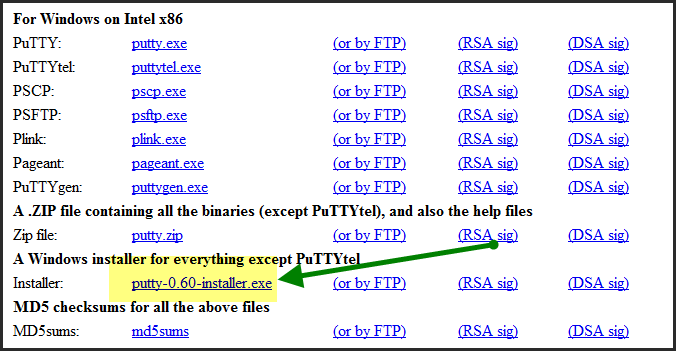
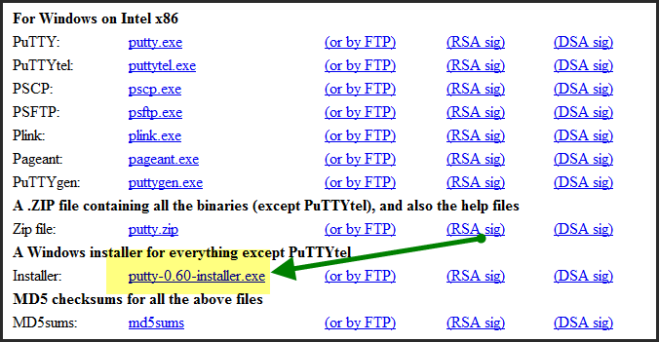
Download from: http://www.chiark.greenend.org.uk/~sgtatham/putty/

Hint: I prefer the windows installer.  However, whatever you do, make sure you get the whole suite (unless you know you don’t need it)
Launch PuTTY and configure “Session” section

user@host is handy for auto-login.  I prefer to place my server name before my username in the saved sessions because the sort order will be maintained as the list grows.

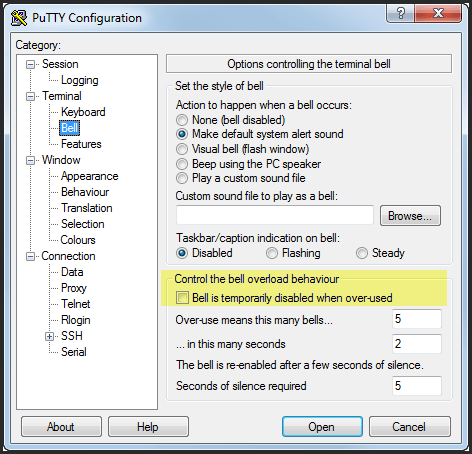
Configure the “Terminal > Bell” section

I have found it preferable not to disable the bell if it is overused.
Configure the “Window” Settings

This is one of the most important settings.  The default of 200 lines of scrollback is just not enough.  I find 20000 to be more useful.  Also, the window size should be set according to your screen size and preferences.

Configure “Window > Appearance” settings

I find that the Luicida Console 14 point font is very easy on the eyes.  Keep in mind I’m usually using a 27″ or 30″ display at 2560 pixels wide, so I can afford the extra size of 14pt.  However, even on smaller screens, I still find it nicer to be able to read effortlessly and see less than the other way around.  Just give it a try :)
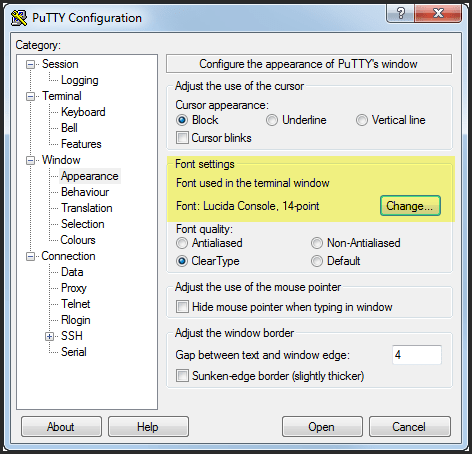
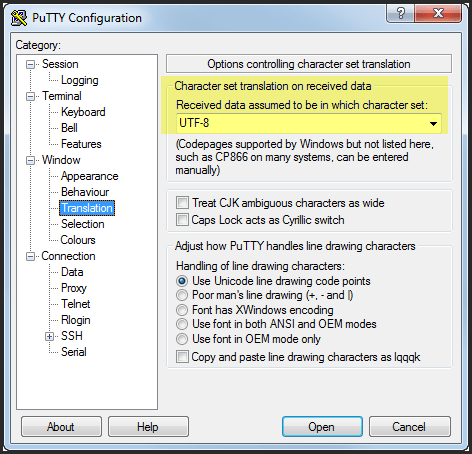
Configure the “Window > Translation” settings

As of a few years ago, Linux began to use UTF-8 character encoding by default.  This means that if your terminal is set to latin1 or similar, then each single multi-byte-character is literally interpreted as multiple latin1 characters, mostly drawn as out-of-place accented letters and various symbols.

So in my experience, it is best to use UTF-8 when connecting to Linux.
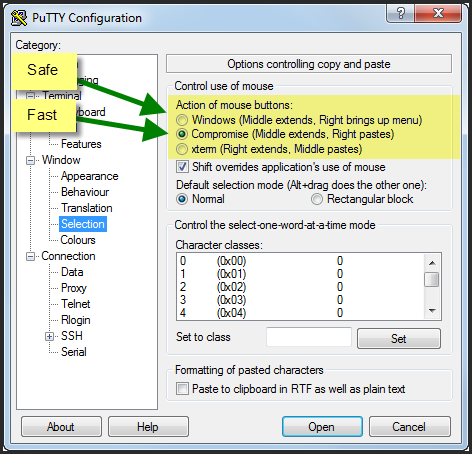
Configure “Window > Selection” settings

You need to decide here if you want an important safety precaution.  Under the “Compromise” setting above, right-click will paste whatever is on the clipboard… even if you were just blogging about sudo rm -rf /

So, think that over pretty hard.  The first option of “Windows” will bring up a right-click menu with a convenient “Paste” option.  Also, you can simply us SHIFT+INSERT to paste in PuTTY.

Configure “Window > Colours” settings

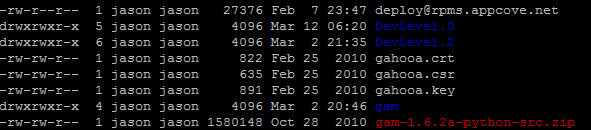
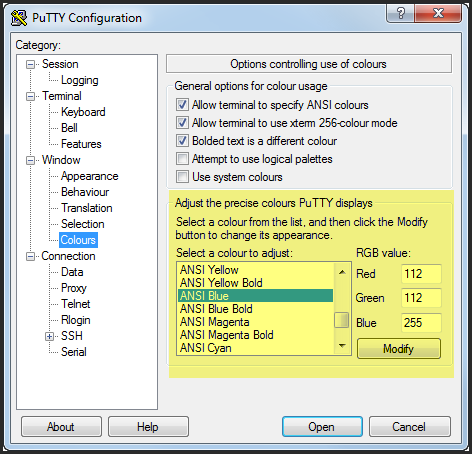
If you can read dark-blue-on-black, then your vision is in another “spectrum” than mine.  Check out the difference here:

Simply select “ANSI Blue” and change the RGB values to 112, 112, 255.

Configure “Connection” settings

It is helpful to send a null packet every once in a while to keep sessions alive.

Configure “Connection > SSH” settings (Update)

David Aldrich pointed out in a helpful comment that  “I also think it is probably worth enabling SSH compression if working over a slow connection.”

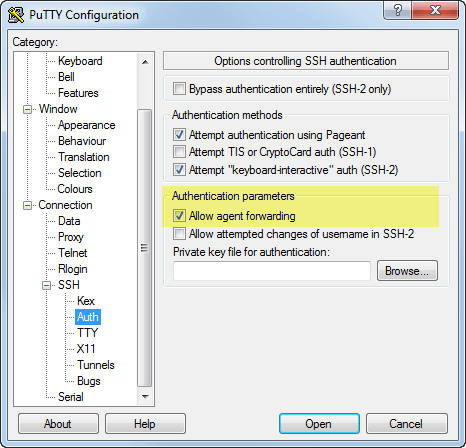
Configure “Connection > SSH > Auth” settings

If you use SSH Agent forwarding (eg pagent) to allow you to “hop” from one server to another, then PuTTY must be told to enable Agent Forwarding.  There are some security issues with this setting when connecting to an untrusted server, so please understand them first.
Configure “Connection > SSH > Tunnels”

If you want to connect to a MySQL or PostgreSQL service running on the host you are connecting to, but have all communication encrypted and sent via SSH tunnel, here is how to set that up.

Keep in mind that your Windows OS you are on must have the source port free, so if you are ALSO running MySQL locally, then pick a different local port number like 13306.

Once your SSH session is established, then you can connect to localhost port 13306 and it will be tunneled to the remote server on 3306.  Cool!

Finally!!! Don’t forget to save your session.

(hint: press the “Save” button)

And that’s it!  The basic PuTTY settings that I use which work quite nicely.

Hope this helps.

Home School Software in Production Use!

Just an update on the use of our Home School software package…  So far, we have entered 216 activities with 462 images/scans across 13 projects, 12 subjects, and 4 students.

Nearly all of the photographs we take are with the Motorola Droid X.  Provided you have sufficient light, the quality is very acceptable.

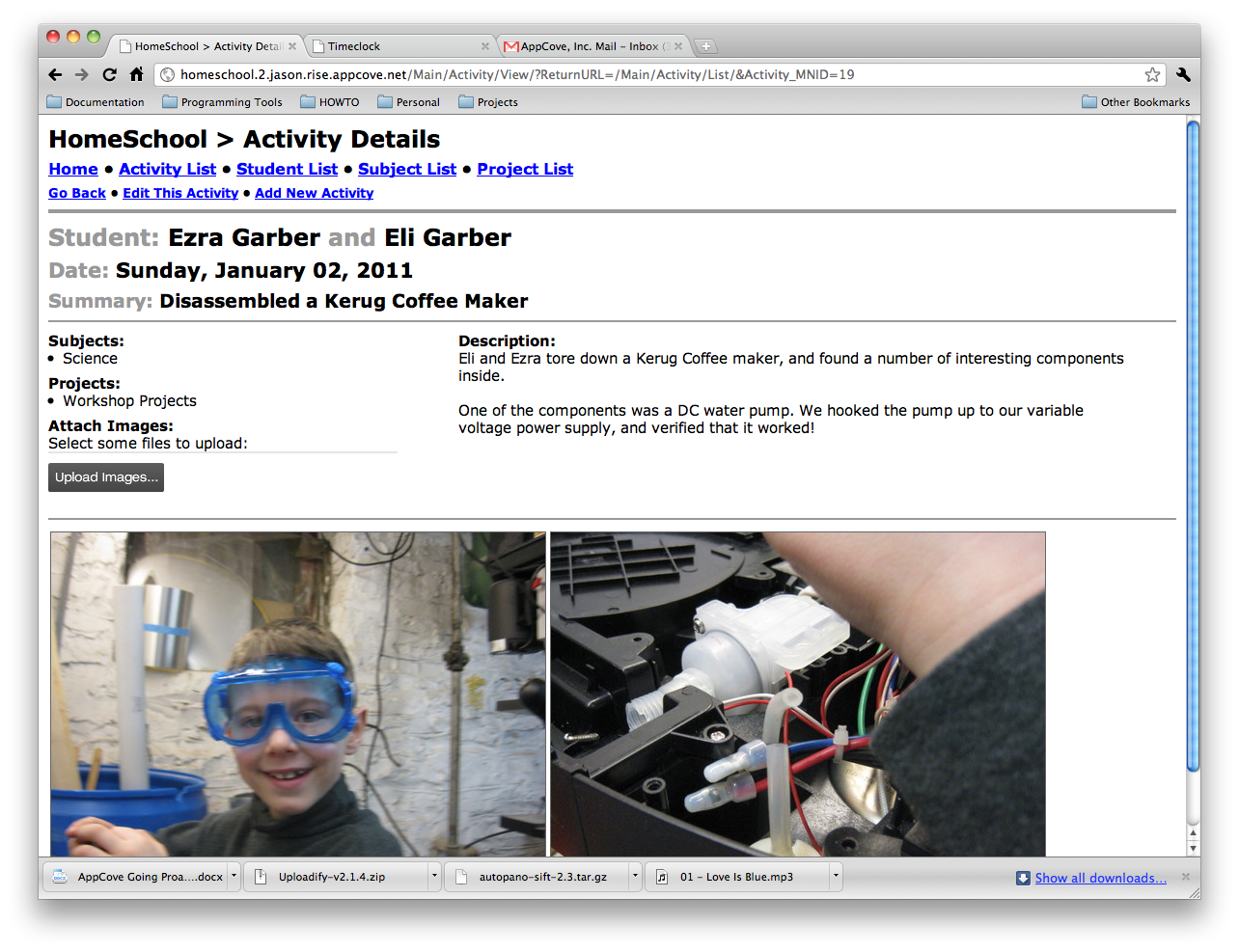
Here is one of the latest activities recorded:

Arduino, Transistors, Motors, and LEDs

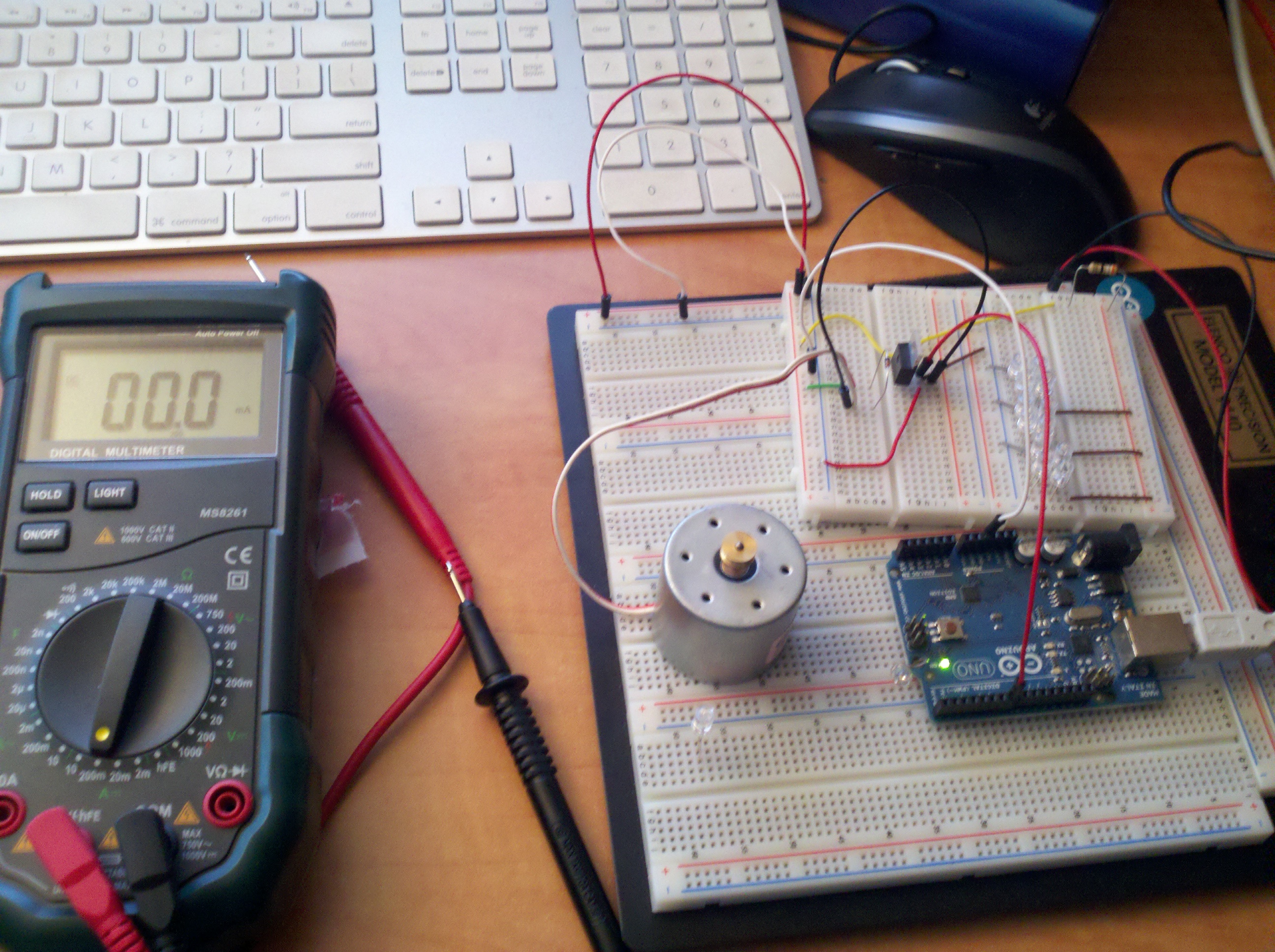
Well, the fun is increasing with Arduino.  We hooked up some circuitry which enables a transistor to switch a fairly large 12V load via a very small 5V digital pin on the Arduino board.

This has been a great learning resource: http://www.kpsec.freeuk.com/trancirc.htm

Basically, we have 12V power going through a motor circuit (protected by a signal diode), and then to the collector of a transistor.  The emitter of the transister is connected to ground.

Lastly, the Arduino ground is joined with the emitter, and the transistor is switched by a 5V digital output pin on the Arduino board.

Now, just need to find something useful to do!


Fun with Arduino

Ok, so if you haven’t heard about it, Arduino is a really cool piece of “open source hardware”.  In simple terms, it is a single board computer with a number of analog and digital inputs and outputs, that can be programmed from your computer, but run independently.

Arduino is an open-source electronics prototyping platform based on flexible, easy-to-use hardware and software. It’s intended for artists, designers, hobbyists, and anyone interested in creating interactive objects or environments.

I recently got this starter kit from Amazon.com:

And have since been playing with making different circuits, etc… It has been a good experience in working with lower level electronics (ohm’s law, etc…)

Hope to post more soon!

Home School Software now supports Images!

Today I got to a great milestone with the homeschool software I discussed here.  It now has excellent image support.

For every activity, you can attach an unlimited number of images.  They are stored in the database with all of the other data, so it’s easy to backup.  Also, I am using ImageMagick to resize them into various preview sizes for quick speeds while working with them.

I used uploadify to power the image uploader and ImageMagick to resize them into preview sizes.

Here is a screen shot of the list page:

And a screen shot of the details page: